How to Turn Your Android Phone or Tablet into a Security Camera
Turning an old Android phone or tablet into a security camera is a cost-effective way to monitor your home. This guide will walk you through the steps to set up your device as a basic security camera for your home or apartment. You don't need to buy expensive security equipment—just reuse an old device you already have!
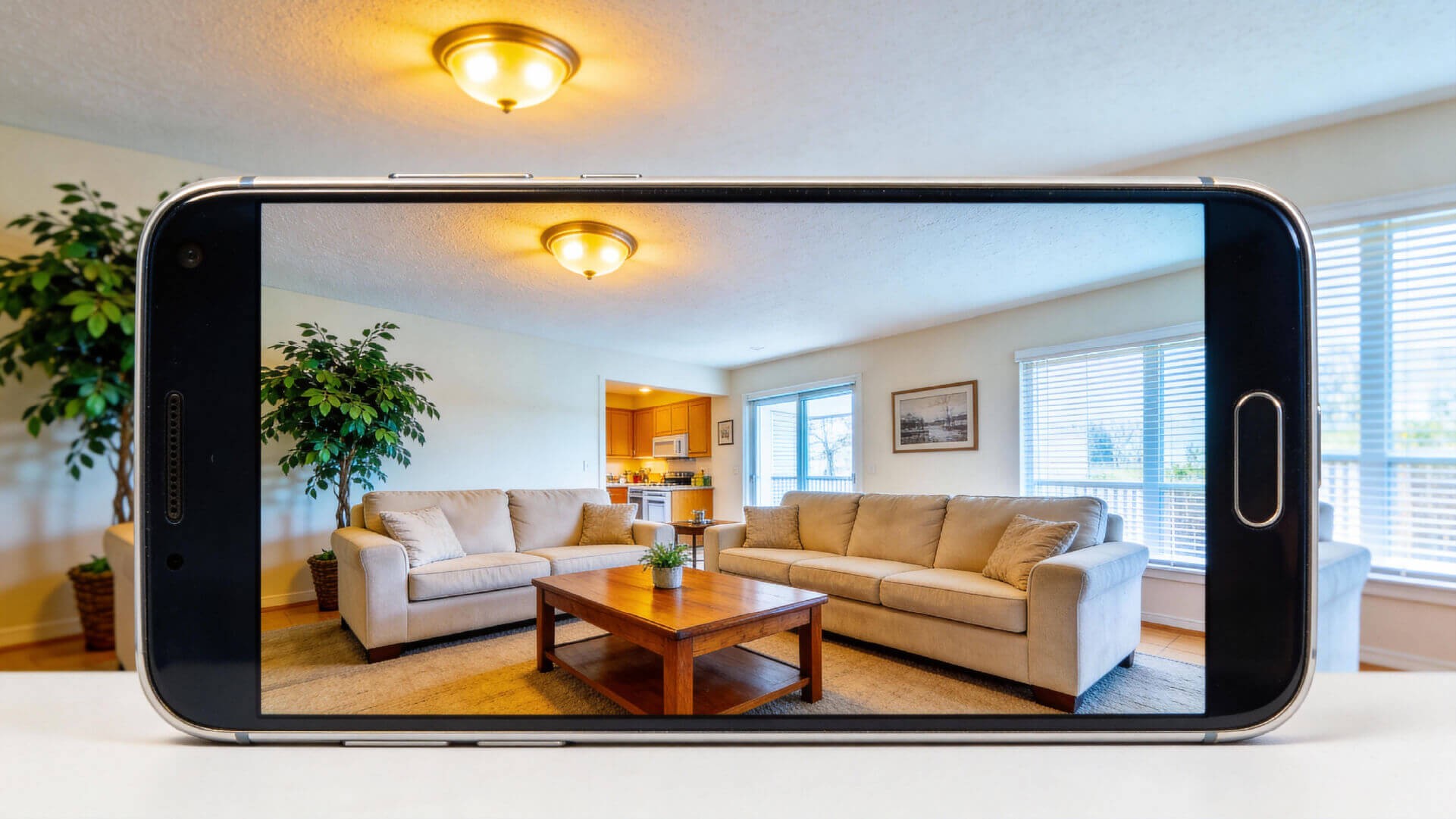
Why Use Your Android Device as a Security Camera
It’s easy to let old phones and tablets collect dust in drawers, but they can still serve a useful purpose. With an Android device, you already have:
- A built-in camera for recording video
- Wi-Fi connectivity for remote viewing
- Processing power to run a security camera app
This method is best suited for basic, indoor security needs like monitoring pets, kids, or checking on your home while away.
What You Need to Get Started
Before turning your Android device into a security camera, make sure you have everything ready:
Your Android Device
- Any Android phone or tablet with a working camera
- Android 5.0 or later is recommended for better compatibility
- The device must be able to stay powered on at all times during monitoring
Older devices are perfectly fine, as long as the camera and Wi-Fi work.
A Second Device for Viewing
- Another phone, tablet, or computer to view the video feed remotely
This second device will let you monitor the footage in real-time.
Reliable Wi-Fi and Power
- A steady Wi-Fi connection to ensure smooth video streaming
- Continuous power to keep the phone or tablet charged during use
Old phones can overheat and drain batteries quickly, so make sure to keep them plugged in.
A Security Camera App
- You’ll need a third-party app to turn your Android device into a security camera. Choose one that supports live streaming, motion detection, and alert notifications.
Some of the most popular apps include:
- AlfredCamera – Simple to use with essential features for free
- Manything – Offers additional automation features
- WardenCam – Uses Google Drive for storage, a good option for privacy-conscious users
Step-by-Step: How to Set It Up
1. Get Your Android Device Ready
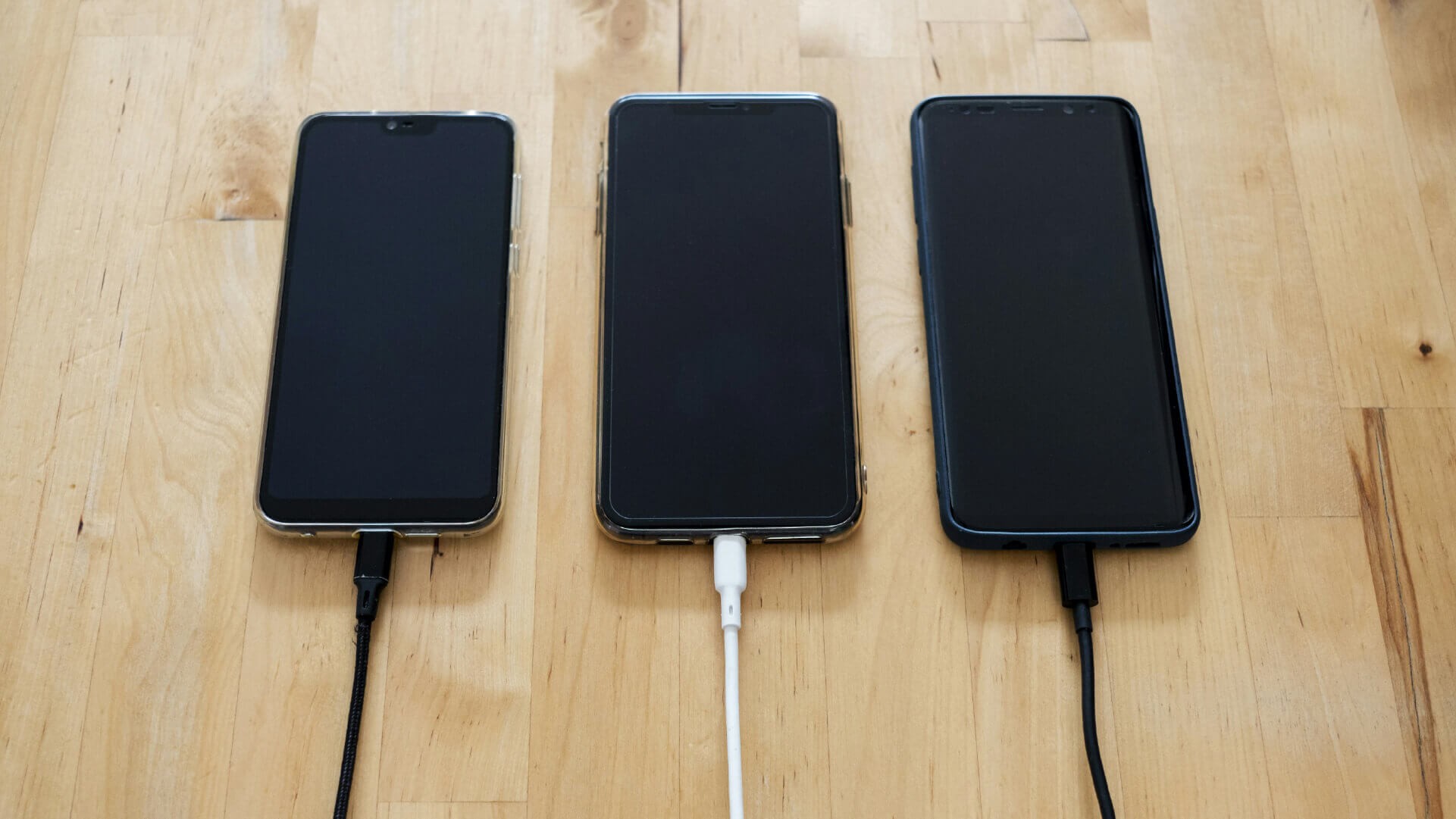
- Fully charge the device and make sure it’s working properly
- Disable the screen lock and any power-saving features to keep the device active during monitoring
2. Install and Sign In to the App
- Download your chosen security camera app on both the old phone and your main phone (or computer)
- Sign in using the same account on both devices
This ensures they’re paired and connected properly.
3. Position Your Device
- Place the old phone in a stable location where it can cover the area you want to monitor, like a front door, living room, or hallway
- Keep it within Wi-Fi range and make sure it’s plugged into a charger
- Consider mounting it on a wall or using a tripod to stabilize it
The higher the placement, the better the visibility.
4. Adjust Motion Detection and Alerts
- Set up motion detection within the app and adjust sensitivity to avoid false alerts (like from pets or shadows)
- Enable push notifications on the viewer device to get alerts when motion is detected
Test the setup to ensure it’s working correctly.
When It Works Best
This DIY security camera setup works well for:
- Indoor spaces such as living rooms, hallways, or home offices
- Short-term monitoring while you’re away on vacation, visiting family, or working late
- Pet or child monitoring to keep an eye on your loved ones when you're not home
- Apartment and rental users who don’t want to install a permanent security system
It’s a low-cost, flexible option for monitoring your home.
Limitations to Keep in Mind
While turning an Android phone into a security camera is simple and cost-effective, it comes with limitations:
- Battery and overheating: Phones are not designed for continuous use and can overheat or shut down if left plugged in for too long
- Fixed camera angles: Unlike professional security cameras, phone cameras can’t move automatically
- Night vision limitations: Phones don’t have infrared sensors, so night vision is limited unless the app uses software to adjust the image
- Not weatherproof: Phones are for indoor use only and cannot withstand the elements
- Security concerns: Your footage may be stored on third-party servers, potentially exposing your data
These limitations may affect long-term reliability and safety.
When to Upgrade to a Dedicated Security Camera
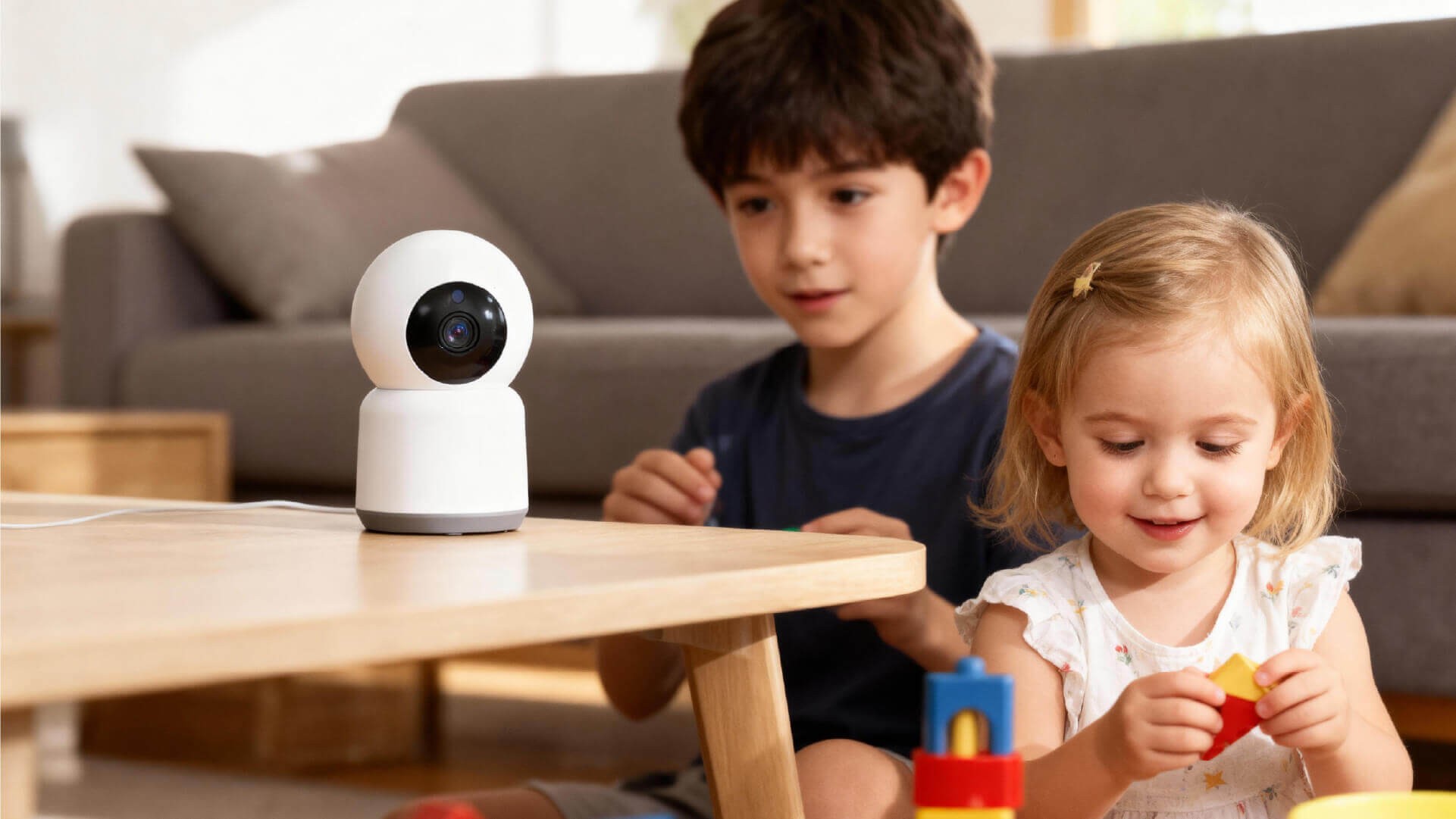
If you need more reliable monitoring, consider upgrading to a dedicated security camera. Professional options, like RusinVision’s Home Vision Series, offer:
- 24/7 monitoring without battery concerns
- Pan-and-tilt capabilities for full-room coverage
- Reliable night vision with infrared sensors
- Advanced motion detection using AI-based human detection
- Local SD card storage, so your footage stays private and secure
For home users looking for a reliable, easy-to-install solution, a wireless home camera is a great option. RusinVision offers several models, such as Home Vision Core and Home Vision Pro, designed for seamless indoor security with Wi-Fi setup, AI detection, and remote viewing via the app.
Conclusion
Turning an old Android phone into a security camera is a quick and affordable solution for basic indoor monitoring. It works well for short-term needs, but as your security requirements grow, a dedicated wireless home camera from RusinVision will provide better long-term reliability, enhanced features, and easier management.
Choose the Right Monitoring Solution for Your Needs
Remember, your needs might change over time. For basic monitoring, using an old phone as a security camera is a good start, but as you look for more advanced features like 360° coverage, reliable night vision, or longer-term storage, RusinVision's Home Vision Series is the perfect solution. Whether you're monitoring your apartment or upgrading your home security system, easy home protection is always within reach.
FAQ
How can I turn my old Android phone into a security camera?
To turn your old Android phone into a security camera, simply download a security app, pair it with another device, and place the phone in a stable location with Wi-Fi and continuous power.
Can I use my old phone as a security camera without Wi-Fi?
Yes, you can use mobile data instead of Wi-Fi for remote viewing, but the connection may be less stable, potentially affecting video quality and response time.
Is it safe to use an old phone as a security camera?
Using an old phone as a security camera can be effective for short-term use, but it may have security vulnerabilities like cloud storage risks. A dedicated security camera provides more control and privacy.
What are the benefits of using a professional security camera like RusinVision?
Professional security cameras offer better performance, reliability, and privacy. They provide advanced features like AI detection, night vision, and local storage, ideal for long-term monitoring.
How do I turn my tablet into a security camera?
Turning a tablet into a security camera follows the same steps as using a phone: install a security app, pair it with another device, and ensure stable power and Wi-Fi for continuous use.
What is the best app to turn an old phone into a security camera?
There are several reliable apps, including AlfredCamera, IP Webcam, and Manything, each offering live streaming, motion detection, and alert notifications for effective security.
What is the best home security camera without a monthly fee?
For those seeking a no-fee solution, RusinVision's Home Vision series provides reliable performance with local storage, AI detection, and high-quality video without subscription costs.