How to Connect Security Cameras to a TV the Easy Way
This guide brings together proven approaches from across the industry to help you connect a security camera to a TV in the simplest way possible. It is designed for home users, renters, and apartment residents who want clear monitoring without complex setup.
Whether you are using a wireless Wi-Fi camera, a PoE system, or a traditional analog camera, this guide helps you choose the easiest and most reliable connection method for your situation.
Why View Security Cameras on a TV Instead of a Phone?
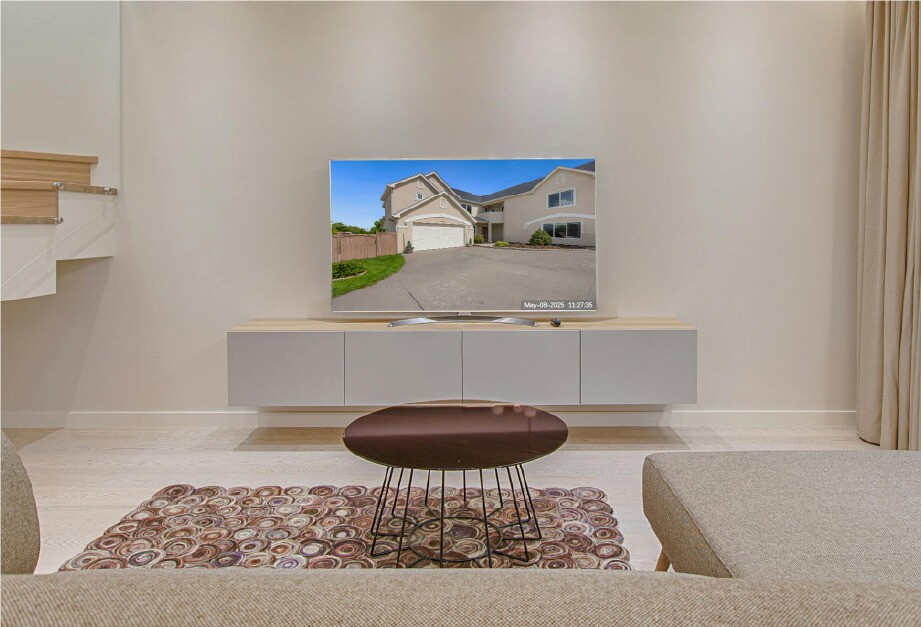
Connecting a security camera to a TV makes daily monitoring easier and more practical.
A larger screen provides a clearer view, which is helpful when multiple people need to check the footage at the same time. It also reduces the need to constantly check a phone, since the TV can stay on during key periods.
For many households, the TV becomes a central point for smart indoor monitoring. It supports daily supervision, family care, and general home awareness.
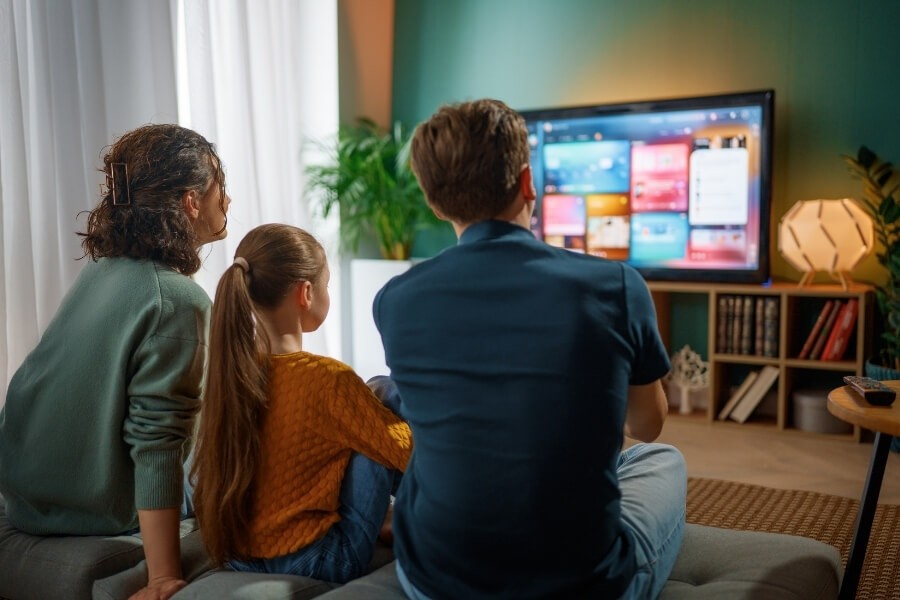
This setup is especially suitable for:
- Home users
- Renters and apartment residents
- Users who prefer simple installation and plug-and-play operation
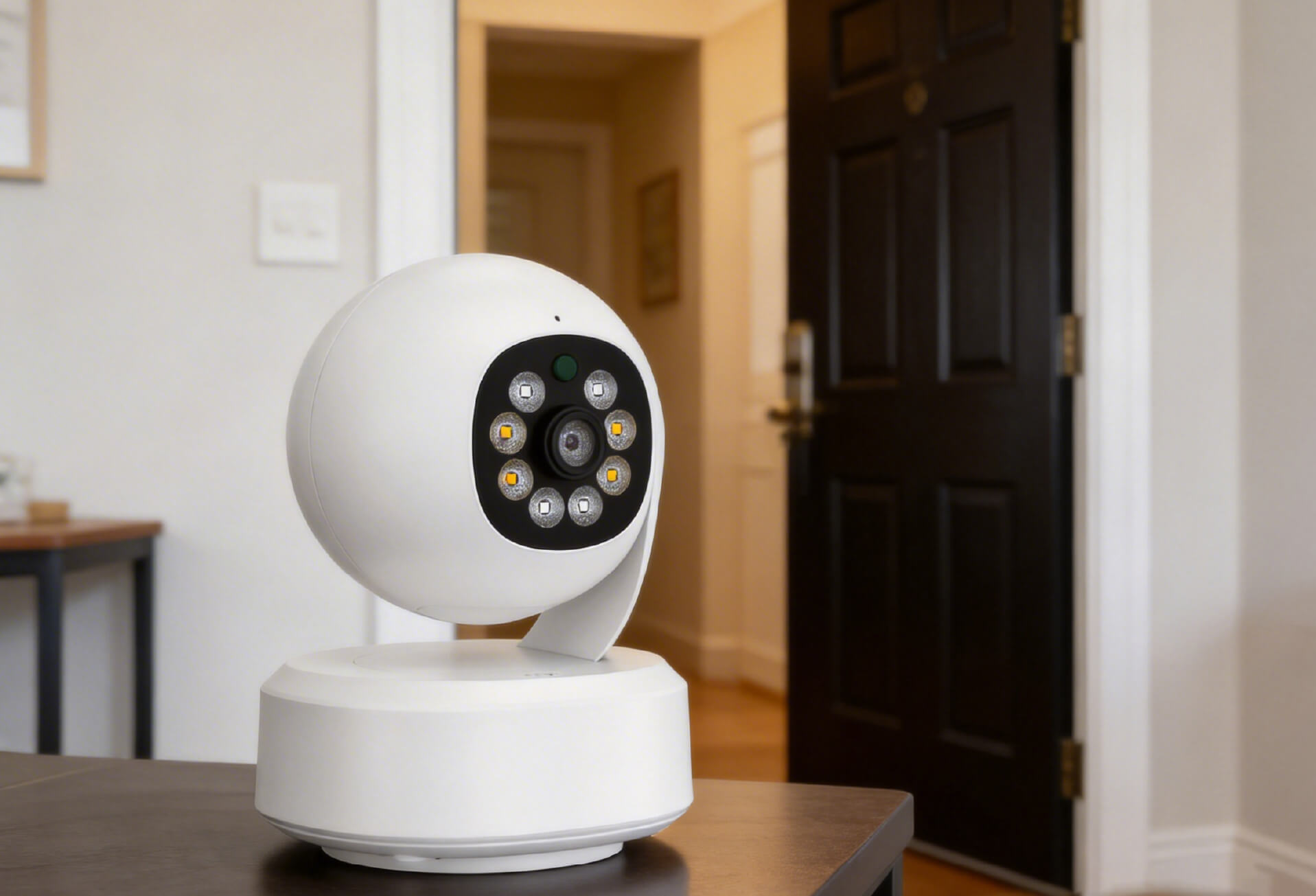
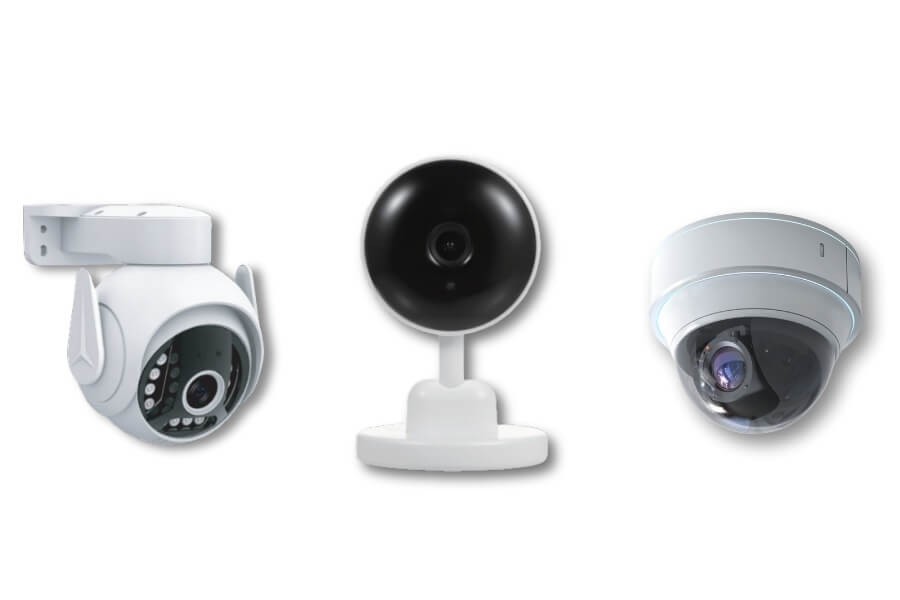
If you are looking for an easy, wireless solution without running cables, a wireless indoor security camera is often the most practical starting point. These cameras rely on Wi-Fi and a mobile app for management, making easy home protection more accessible.
What You Need Before Connecting a Camera to a TV
What Type of Security Camera Are You Using?
Different camera types require different connection methods.
| Camera Type | How to Identify | Recommended TV Connection |
|---|---|---|
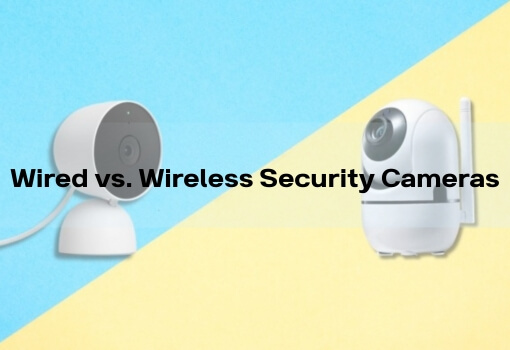
| Wireless Wi-Fi camera | No network cable, managed through a mobile app | Smart TV app, screen casting, smart home integration |
| PoE camera | Powered and connected through Ethernet, labeled “PoE” | NVR connected to TV via HDMI |
| Analog CCTV camera | Uses coaxial or RCA cable, usually BNC interface | DVR connected to TV via HDMI or AV |
Is Your TV Ready to Show Camera Footage?
Before connecting anything, confirm the following:
- Input ports Make sure the TV has HDMI or AV inputs. Older TVs may require adapters.
- Resolution support The TV should support the camera’s output resolution to avoid scaling issues.
- Smart TV features Smart TVs can support camera apps or wireless casting, which simplifies setup.
Which Connection Method Is Right for Your Setup?
The best connection method depends on how you plan to use the camera.
- Wireless Wi-Fi cameras Wireless viewing methods are usually the simplest and fastest.
- Multiple cameras with 24/7 recording needs An NVR or DVR system provides stability and centralized control.
- Temporary or single-camera viewing Direct HDMI or AV connections may be sufficient.
- Older TVs or incompatible interfaces Converters or video encoders may be required.
For most households, a wireless home camera paired with a smart TV or screen casting provides the quickest path to everyday monitoring. These cameras often support pan and tilt, AI human detection, two-way audio, and local storage, which covers most daily needs.
Method 1: Watching Security Cameras on a TV Wirelessly
Recommended for wireless Wi-Fi indoor cameras
Watching Cameras Directly on a Smart TV
- Connect the camera to your home Wi-Fi network.
- Open the TV’s app store and install the camera’s official app.
- Log in and add the camera.
- View the live feed directly on the TV.
Casting Camera Video From Your Phone to the TV
- Connect the phone and TV to the same Wi-Fi network.
- Open the camera app and start live view.
- Use casting features such as Chromecast, AirPlay, or Miracast.
Using Smart Home Platforms to View Cameras on a TV
- Add the camera to a supported smart home platform.
- Install the corresponding app on the TV or enable the voice assistant.
- Call up the camera feed through the app or voice control.
A wireless indoor security camera designed for home use often works best with these methods. Models that support dual-band Wi-Fi, pan and tilt control, night vision, and AI-based human detection help reduce false alerts and improve daily viewing.
Wireless home camera series commonly used in smart indoor monitoring setups, including those designed by RusinVision, are built for this type of simple integration.
Method 2: Viewing Multiple Cameras Through an NVR or DVR
For multi-camera setups and continuous recording
Basic Connection Steps
- Connect cameras to the NVR or DVR using Ethernet or coaxial cables.
- Connect the recorder to the TV using an HDMI cable.
- Power on all devices and select the correct TV input.
- Use the recorder interface to view and manage feeds.
Advantages and Considerations
Advantages
- Stable signal
- Multi-camera display
- Continuous recording and playback
Considerations
- Additional hardware required
- More complex installation
This approach is suitable for long-term monitoring with multiple cameras.
Method 3: Connecting a Camera to a TV With Cables
For cameras with HDMI or AV output
HDMI Connection
- Connect the camera’s HDMI output to the TV.
- Switch the TV to the correct HDMI input.
- View the live feed.
AV (RCA) Connection
- Connect the camera to the TV using RCA cables.
- Switch the TV to AV input.
This method offers lower image quality and is mainly used with older TVs or analog cameras.
Method 4: Using a Video Converter as a Backup Option
When camera output and TV input do not match
- Connect the camera output to a video encoder.
- Connect the encoder to the TV via HDMI or AV.
- Select the correct TV input.
This option may affect image quality and adds extra equipment. It is best used only when other methods are not available.
FAQ
Will wireless connections be unstable?
Wireless viewing is generally stable when the camera supports dual-band Wi-Fi and is installed within strong signal range. Most connection issues are caused by weak Wi-Fi coverage or interference. Placing the camera closer to the router and avoiding signal dead zones can significantly improve reliability for daily home monitoring.
Can I view multiple wireless cameras on one TV?
Yes. Many camera apps and smart home platforms support multi-camera viewing on a single screen. You can switch between feeds or display multiple views at once. For larger setups or continuous monitoring, using an NVR provides more stable management of multiple cameras on a TV.
Can wireless cameras work without internet access?
Some wireless cameras allow local viewing within the same local network, even without internet access. In this case, the camera and TV must be connected to the same LAN. However, remote viewing and app-based access from outside the home require an active internet connection.
What if the TV shows “No Signal”?
First, check that all devices are powered on and the correct TV input is selected. For wired connections, confirm cables are securely connected. For wireless setups, restart the camera, TV, and router if needed, then reconnect the devices to restore the video feed.
How is privacy protected when viewing cameras on a TV?
Privacy protection depends on camera features and user settings. Choose cameras that support local storage, encrypted data transmission, and privacy masking. Regular firmware updates and strong account passwords also help reduce unauthorized access and protect personal data during daily monitoring.
Can I use a TV as a monitor for security cameras?
Yes. A TV can function as a monitor for security cameras using HDMI connections, DVR or NVR systems, or wireless streaming through apps and casting. TVs are suitable for live viewing, but they are not designed to replace professional monitoring displays for advanced security analysis.
What camera works best with a TV for home use?
For most homes, a wireless indoor security camera with HD video, pan and tilt control, night vision, and mobile app support works best. These cameras integrate easily with smart TVs and screen casting, making them flexible for everyday home monitoring without complex installation.
Conclusion: Choose the Method That Fits Your Home
- For simple, plug-and-play use Wireless Wi-Fi cameras with smart TV apps or casting offer the easiest setup.
- For continuous recording and multiple cameras NVR or DVR systems provide long-term stability.
- For temporary or single-camera viewing Direct wired connections may be enough.
- For older equipment Converters can bridge compatibility gaps.
The best solution depends on your home layout, devices, and daily needs. For most households, a well-designed wireless indoor security camera combined with smart TV viewing offers an efficient path to easy home protection and reliable smart indoor monitoring.
In many home-focused setups, this approach is commonly paired with wireless indoor cameras designed for simple installation and app-based viewing, such as those used in RusinVision home monitoring environments.