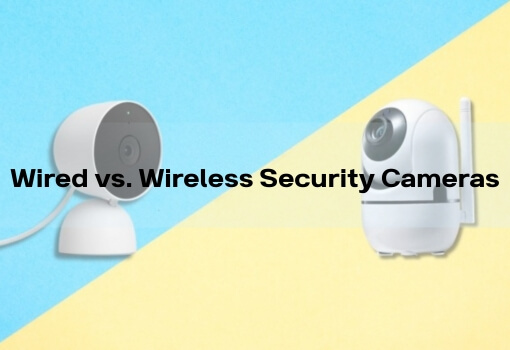
Why Wireless Indoor Cameras Simplify Home Security in 2025
In 2025, home security systems are easier to install and manage than in previous years. For most homeowners, renters, and apartment residents, complex wiring and professional installation are no longer required. Choosing the right indoor security camera is often the first step in building a reliable home monitoring setup.
This guide explains the full process, from planning to setup. Even first-time users can follow these steps to create a stable and practical indoor monitoring system.
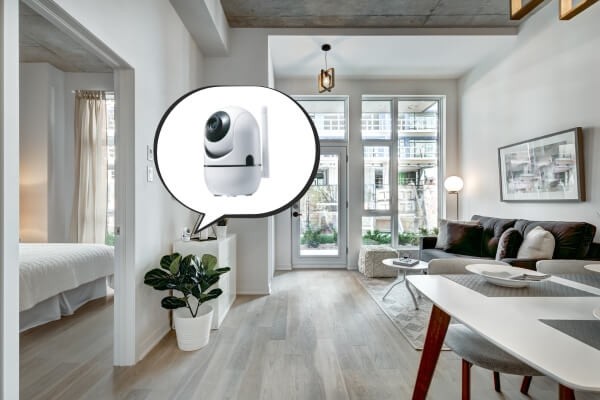
Plan Your Setup: Decide What to Monitor and Which Camera You Need
Identify the Areas You Want to Monitor Indoors
Start by identifying which indoor spaces require monitoring.
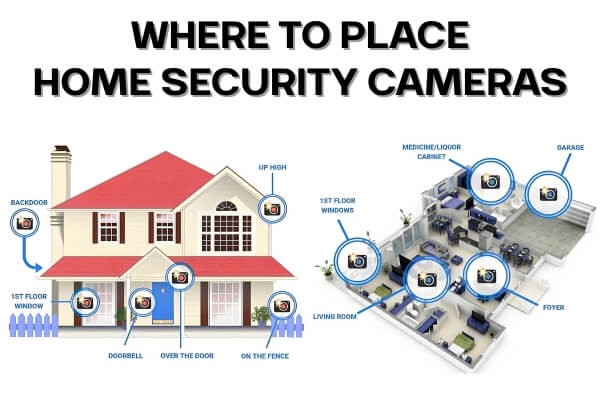
Common indoor focus areas include:
- Main entry points and doors
- Hallways and shared walkways
- Living rooms and common areas
- Children’s rooms or elderly care spaces
- Locations where valuables are stored
Consider lighting conditions during both day and night. Room size also matters, especially when wide coverage is needed from a single camera.
Choose the Right Type of Indoor Security Camera
Wireless Wi-Fi cameras send video through your home network and only need a power connection. They do not require video cables, which allows flexible placement and a straightforward installation process. For most households, this makes them suitable for everyday indoor security use.
For users who want a clean setup, choosing a camera with stable Wi-Fi support helps reduce connection issues. Dual-band support can further improve reliability in busy home networks.
Key Features That Matter for Indoor Security Cameras in 2025
When comparing wireless indoor cameras, focus on features that support daily use rather than specifications alone.
- Image quality: 2MP or 3MP resolution provides clear detail for indoor monitoring.
- Pan and tilt control: Rotating cameras can cover an entire room and reduce blind spots.
- Night vision: Infrared or full-color night vision maintains visibility in low-light conditions.
- AI human detection: Helps reduce alerts triggered by pets or lighting changes.
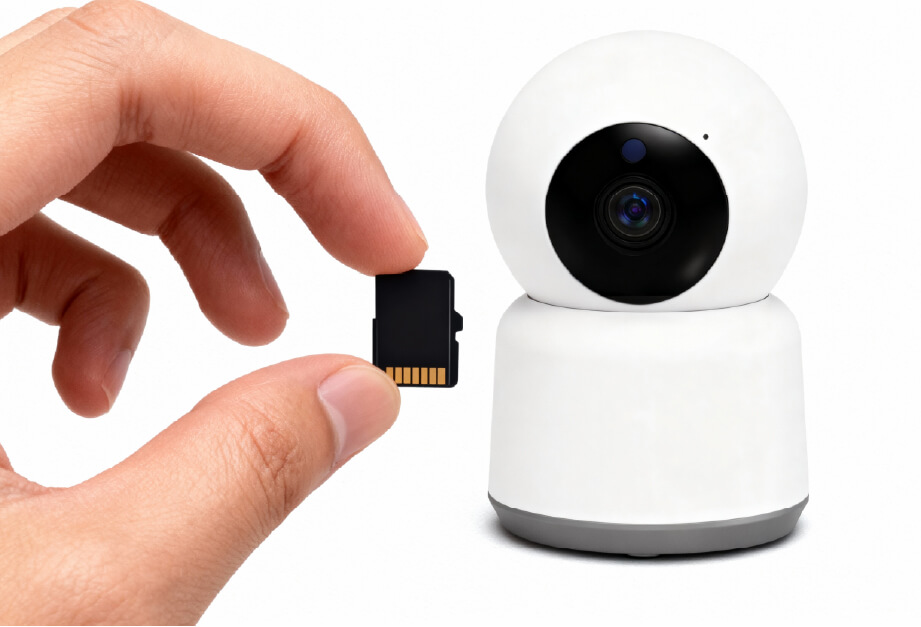
- Storage options: Local SD card storage supports recording without ongoing cloud fees.
Many indoor cameras combine these functions in a single device, allowing daily monitoring without complex setup.
How to Install a Wireless Home Camera Step by Step
Step 1: Choose the Best Spot for Your Indoor Camera
Select a location that balances coverage, safety, and connectivity.
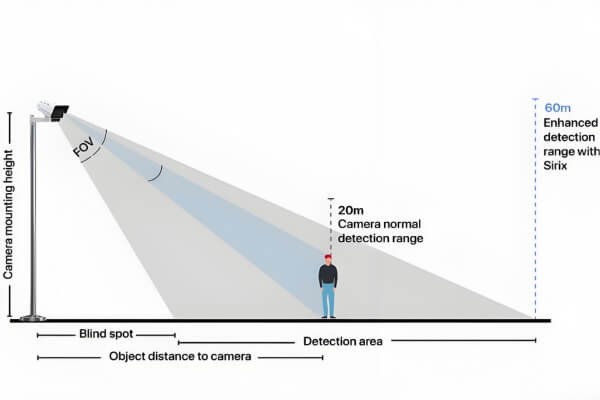
- Height: Install the camera about 2 to 2.5 meters above the floor.
- Angle: Cover doorways and common movement paths. Avoid pointing directly at windows or strong light sources.
- Power access: Ensure a nearby power outlet is available.
- Wi-Fi signal: Test signal strength at the location using a smartphone before installation.
Stable network connectivity is essential for reliable indoor monitoring.
Step 2: Mount the Camera Without Drilling or Permanent Changes
Most wireless indoor cameras include simple mounting accessories.
- Mounting options: Magnetic bases or adhesive mounts allow installation without drilling.
- Rental-friendly setup: Non-invasive mounting works well in apartments or temporary living spaces.
- Initial adjustment: Use the mobile app to fine-tune the viewing angle after mounting.
This approach avoids permanent wall changes while keeping placement flexible.
Step 3: Power On the Camera and Connect It to Wi-Fi
This step completes the initial setup.
- Connect the camera to its power adapter and wait for startup.
- Download the companion mobile app and follow the on-screen instructions.
- Most setups use QR codes or device IDs to connect the camera to your home Wi-Fi network.
Many modern wireless indoor cameras support a plug-and-play setup process. Once connected, live video can be viewed remotely through the app.
Step 4: Configure Motion Detection, Alerts, and Recording
After installation, adjust settings to match daily routines.
- Define motion detection zones to reduce unnecessary alerts.
- Enable AI-based human detection for more accurate notifications.
- Choose continuous or motion-triggered recording based on storage needs.
- Walk through the monitored area to test alerts, recording, and night vision performance.
These adjustments help the system operate consistently without causing disruptions.
Tips to Keep Your Indoor Camera Running Smoothly
Common Installation Issues and How to Avoid Them
- Avoid blind spots: Use pan and tilt controls or scheduled camera rotation when available.
- Improve Wi-Fi stability: If the camera is far from the router, a Wi-Fi extender may help.
- Manage privacy: Rotate the camera toward a wall or use a physical cover when monitoring is not needed.
Thoughtful placement helps reduce false alerts and improves daily usability.
Simple Maintenance for Clear and Reliable Video
Basic maintenance helps maintain consistent performance.
- Clean the camera lens periodically with a soft cloth.
- Check for firmware updates to maintain security and compatibility.
- Review stored footage and confirm sufficient SD card space for loop recording.
How to Protect Privacy and Secure Your Home Network
- Use a strong password for the camera app and enable two-factor authentication if available.
- Secure your home network with WPA2 or WPA3 encryption.
- Inform household members or roommates when cameras are installed in shared spaces.
Clear communication helps prevent misunderstandings when cameras are used in shared environments.
FAQ
Do wireless cameras still need power?
Yes. “Wireless” refers to video transmission, not power supply. Most indoor wireless cameras require a power adapter connected to an outlet. Battery support may allow short-term use, but continuous indoor monitoring typically relies on a stable power source.
What is the most difficult part of installation?
For most users, the main challenge is selecting a location with reliable Wi-Fi coverage and completing the initial app pairing. Weak signals can cause connection issues. Cameras designed for plug-and-play setup usually reduce installation time.
How can night vision performance be improved?
Avoid placing reflective or glass surfaces directly in front of the camera, as they can cause infrared glare. Reduce strong backlighting and confirm night vision mode is enabled. Proper placement supports consistent low-light performance.
What happens when the SD card is full?
Most indoor cameras support loop recording. When storage reaches capacity, the system overwrites the oldest footage automatically. A 128GB SD card typically stores several days of indoor video, depending on recording settings and activity levels.
Can one camera be used for both caregiving and security?
Yes. Many indoor cameras include two-way audio and AI-based motion detection. These features allow users to check on family members while also receiving alerts for unexpected movement.
Is DIY installation better than professional installation?
For indoor wireless Wi-Fi cameras, DIY installation is usually sufficient. These cameras are designed for simple setup without drilling or wiring. Professional installation is generally needed only for complex systems or specialized mounting requirements.
Final Thoughts: Practical Indoor Security in 2025
In 2025, home protection can be achieved without complicated equipment or advanced technical skills. With proper planning and the right wireless indoor camera, indoor monitoring can be installed quickly and managed with confidence.
By understanding your needs, selecting practical features, and following a clear setup process, indoor security becomes accessible for everyday users. Modern camera technology now supports home protection that fits naturally into daily living spaces without unnecessary complexity.